Most Shopify emails are still one-size-fits-all. Same order confirmation. Same shipping email. Same content, no matter who the customer is or what they’ve bought.
That’s a missed opportunity.
With Shopify email conditional sections, you can decide exactly when parts of an email should appear, based on real customer and order data. First-time buyer? Returning customer? Specific order conditions? Show the right content, hide the rest.
Orderly Emails now supports custom Liquid logic on individual email sections, giving merchants precise control without duplicating templates or breaking design consistency.
In this guide, we’ll explain what Shopify email conditional sections are, why they matter for email marketing, and how to use this new Orderly Emails feature to send more relevant, higher-performing order emails.
If you care about cleaner emails, better targeting, and smarter automation, this is for you.
What Are Shopify Email Conditional Sections?
Shopify already exposes a lot of data inside email notifications. Customer details, order history, totals, tags, shipping methods, and more. But by default, Shopify emails show everything, every time.
Conditional sections change that.
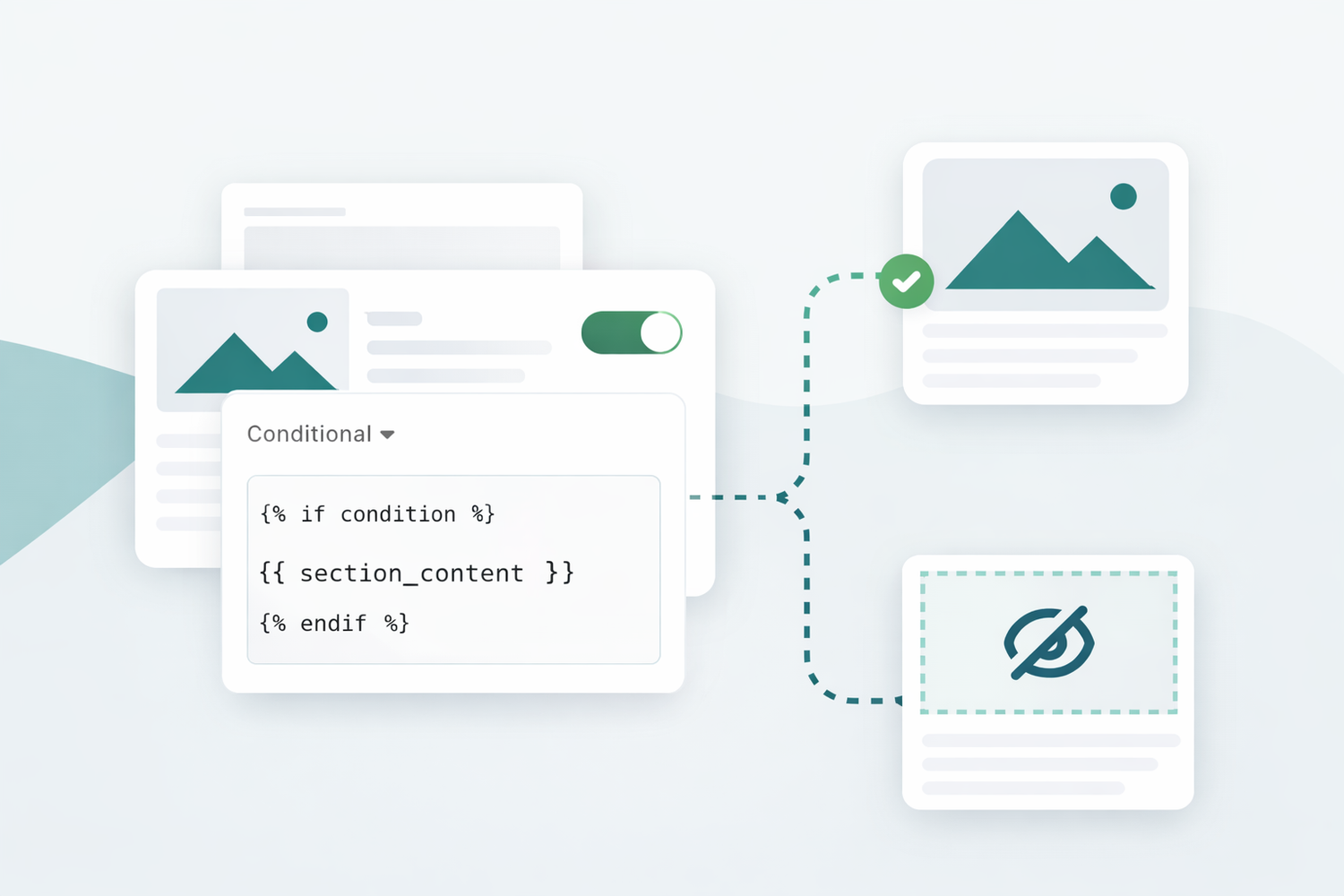
A conditional section is a part of an email template that only appears when certain rules are met. These rules are written in Liquid, Shopify’s templating language.
Instead of controlling an entire email, you control specific sections.
For example:
- Show a section only for first-time buyers
- Hide upsells for wholesale customers
- Display a delivery note only for local pickup orders
With Orderly Emails, you can now add this logic directly to a section, not the whole template.
That’s the difference.
Why Conditional Sections Matter for Shopify Email Marketing
Less duplication, more control
Without conditional logic, merchants often create:
- Separate templates for new vs returning customers
- Multiple versions of the same order confirmation
- Workarounds using tags or manual edits
That doesn’t scale.
Conditional sections let you keep one clean email template and handle variations inside it.
Relevance beats volume
Customers read emails that feel relevant. They ignore emails that feel generic.
Showing or hiding sections based on context keeps emails focused:
- Shorter
- Clearer
- More useful
That improves engagement without sending more emails.
Built on Shopify data you already have
No third-party tools. No syncing. No hacks.
Liquid logic uses Shopify’s native objects, like:
customerorderline_itemsshipping_method
Orderly Emails simply gives you a safe place to use them.
What’s New in Orderly Emails
Orderly Emails now allows custom Liquid display logic on individual sections inside your email templates.
That means:
- Each section can decide if it should render
- Logic is scoped to the section, not the whole email
- Your layout and design stay intact
You’re not rewriting templates. You’re adding conditions where they make sense.
Example: First-time customer message
Here’s a simple example that shows a section only if it’s the customer’s first order:
{% if customer.orders_count == 1 or customer.orders_count == 0 %}
  {{ section_content }}
{% endif %}
When the condition is true, the section appears. When it’s false, the section is skipped entirely.
No empty space. No broken layout.
Practical Use Cases for Shopify Email Conditional Sections
Let’s look at how merchants actually use this.
1. First-time vs returning customers
Welcome new customers properly.
Show:
- A thank-you message
- Brand story
- “What happens next” explanation
Hide it for returning customers who already know the flow.
Result: cleaner order confirmation emails that don’t repeat themselves.
2. Upsells only when they make sense
Upsells can work. Badly timed upsells don’t.
Use conditional sections to:
- Show product recommendations only above a certain order value
- Hide upsells for discounted or wholesale orders
- Promote refills only if a customer bought a consumable product
This keeps email marketing helpful, not pushy.
3. Shipping and delivery conditions
Different shipping methods often need different instructions.
For example:
- Show pickup instructions only for local pickup
- Show customs info only for international orders
- Hide delivery text for digital products
Conditional sections prevent confusion after checkout.
4. Customer groups and tags
If you use customer tags, you can tailor content easily.
Examples:
- VIP customers see loyalty perks
- Wholesale customers skip consumer messaging
- B2B buyers get invoice-related notes
All inside the same email template.
5. Seasonal or campaign logic
Running a limited promotion?
You can conditionally show:
- A discount reminder
- A seasonal message
- A follow-up CTA
And remove it later without redesigning the email.
Why This Is Better for Merchants
One template, many scenarios
Instead of managing multiple versions of the same email, you maintain one template per notification type.
Conditional sections handle the differences.
That saves time and reduces mistakes.
No design trade-offs
This feature works inside Orderly Emails’ editor.
You still get:
- Brand colors and fonts
- Logos and layout control
- Mobile-optimized templates
Logic doesn’t break design.
Works with Shopify’s native email system
Orderly Emails runs directly in your Shopify admin.
No external sending. No syncing delays. No deliverability risk.
Your Shopify email notifications just get smarter.
Why This Is Better for Customers
Customers don’t think in templates. They think in moments.
Conditional sections help you match the moment, like a first purchase or a special delivery case.
That leads to:
- Less clutter
- Clearer instructions
- Emails that feel intentional, not automated
It’s a small change with a noticeable impact.
How to Use Conditional Sections in Orderly Emails
Getting started is straightforward:
- Open any email template in Orderly Emails
- Select the section you want to control
- Find the Section display logic field in the section settings
- Add your custom Liquid condition
- Save and preview
If the condition is met, the section shows. If not, it doesn’t render at all.
You don’t need to touch the rest of the template.
Best Practices for Using Liquid Logic Safely
Keep logic simple
Start with clear conditions like order count, tags, shipping method, or order total.
Always test with previews
Preview first-time orders, repeat customers, and different shipping types to make sure sections appear and disappear as expected.
Document your logic
If multiple people manage emails, add comments inside your Liquid logic so future edits don’t break things.
When You Should Not Use Conditional Sections
This feature is powerful, but not always needed.
Skip it if:
- The content applies to every customer
- The logic would be too complex to maintain
- You’re better off sending a separate marketing email
Use conditional sections where relevance matters most, mainly in order emails and confirmations.
Why Orderly Emails Is Built for This
Orderly Emails was built for merchants who want better Shopify emails, more control, and fewer hacks.
Conditional sections fit naturally with:
- Branded email templates
- Shopify email notifications
- Email marketing that respects the customer journey
No coding required for design. Optional logic when you need it.
Conclusion
Shopify already gives you the data. Orderly Emails now lets you use it where it counts.
With Shopify email conditional sections, you can:
- Personalize your Shopify order emails without duplication
- Keep templates clean and on-brand
- Send fewer, better emails
If you’re still sending the same message to every customer, this feature changes that.
You can install or learn more about Orderly Emails on the Shopify App Store:
https://apps.shopify.com/email-templates
Smarter emails. Same workflow. Fewer compromises.